Print your document
Se aplica a:
Word para Office 365 Word 2016 Más... Menos
Print and Print Preview are in the same place: go to File
> Print (or press Ctrl+P).
1. Select File > Print.
On the right,
you’ll see a preview of your document. On the
left, you'll see the Print
button and the configurable
Settings.
2. To see each page, click the arrow at the
bottom of the preview, and if the text is
too small, use the zoom slider to adjust it.

3. Choose the number
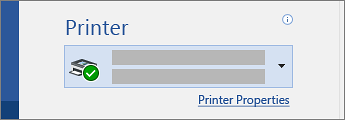
of copies you want, and choose the printer
to use.
4. Explore Settings
to print on both sides of the
paper, change the paper orientation,
and other configurations. These functions will differ according
to the capabilities of your printer.
Note: For some settings, like printing in color or black and white,
select Printer Properties.
5. When you're ready, select Print.